


Tip
A detailed description and operating instructions for the ETHM-A module via GX Soft tool can be found on the official Satel website: ETHM-A – SATEL
To configure minimum required settings which allow communication between Satel2 ETHM-A universal monitoring module and Axxon One, read the instructions below.
Connection of the GX Soft tool to the Satel2 ETHM-A universal monitoring module
- Open the GX Soft tool.
Note
Recommended version: 2.1.5 or later.
- Press the New project button.

- From the drop-down list, select ETHM-A.

- Press the Connection button.

- Specify connection method, and then select a module from the list of detected modules. If the module is not automatically detected, you can manually enter the connection settings.
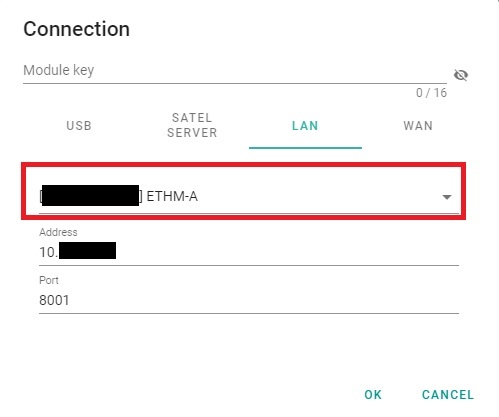
If the settings are correct, you will be able to establish the connection by pressing the dedicated button on the top panel.
Preview and configuration of inputs and outputs
Input/Output preview
GX Soft tool allows you to view the status of the module's inputs and outputs in real time.
In order to preview them, go to Input/Output states.
Input/Output configuration
Note
Configuration of Satel2 ETHM-A inputs and outputs is not possible via Axxon One VMS.
Input/Output configuration can be done via GX Soft tool.
In order to configure inputs and outputs of Satel2 ETHM-A universal monitoring module, please refer to the ETHM-A general information manual, available on the manufacturer's website.
Preparing connection to Axxon One server
In order to prepare the connection between Axxon One server and ETHM-A universal monitoring module, do the following:
- Go to Hardware → Network and set up a static IP address for the Satel2 ETHM-a universal monitoring module. It must belong to the same network as Axxon One server.

- Go to Functions → Communication, and then enable Connect to GX Soft and Direct connection options to be able to establish a LAN connection to the GX Soft software.

- Go to Functions → IoT and configure the settings according to the table below.

Parameter Recommended value Description IoT Enabled Enables IoT. Polling type JSON/HTTP Polling type. Port - Port used to send data to Axxon One. Default port is 8080. Server [Axxon One server IP address]
Specifies the computer to which the universal monitoring module will send the data to. Polling - Polling time in dd:hh:mm:ss format. HTTP header POST http://%H%:%P%/write HTTP 1.1
User-Agent: ETHM-A %V%
Content-Type: application/jsonHTTP header for sending events to Axxon One. Options - Defines situations in which the universal monitoring module will send messages with data to Axxon One. Frame - Defines the settings that the GX Soft software will upload to the universal monitoring module upon request.