
Go to documentation repository
WEB Report System PSIM is installed as a part of Axxon PSIM. an extension to Axxon PSIM. For the information on the compatibility of WEB Report System PSIM with Axxon PSIM versions, see General information about product releases and versions compatibility.
| Note | ||
|---|---|---|
| ||
WEB Report System PSIM should must be installed only on Server/Remote Administrator's workstationworkplace (for details, see Axxon PSIM software. Administrator's Guide). |
To install WEB Report System PSIM, do the following:


Select MS SQL Server DB server and set the connection parameters (for details, see Installation of Axxon PSIM as a Server/Remote Administrator's workstation).
To continue the installation process, click
the Next button.
| Info | ||
|---|---|---|
| ||
The WEB Report System PSIM |
database is created on the selected SQL server. |
Later, you can move the database |
of WEB Report System PSIM to another SQL server. After that, it is necessary to make changes to |
the <Axxon PSIM installation directory>\Modules\Wt2\Web.config file by correcting the |
connection string ReportSystemConnectionString: <add name="ReportSystemConnectionString" connectionString="Integrated Security=SSPI;Persist Security Info=False;Initial Catalog=ReportSystem;Data Source=(local)\SQLEXPRESS2014;" providerName="System.Data.SqlClient"/> |

Specify the connection strings to the main Axxon PSIM database and the POS PSIM receipts receipt database. The connected databases will serve as a data source when creating you create reports.

To set the connection string to the main the main Axxon PSIM database, do the following:
Click the Connection to the main PSIM DB button.
As a result, the Data Link Properties dialog box is displayed window opens.
Click the Next button.
As a result there will be an automatic switch to ConnectionThe Connection tab opens automatically.
In the 1. Select or enter a server name line section, select from the drop-down list or enter manually the name of the SQL server where the main main Axxon PSIM database is stored.
To log on to the SQL server it is necessary to set , enter authentication parameters.
For this
, in the 2. Enter information to log on to the server section, select Use a specific user name and password
.
In
the User name and Password fields, enter the username (login) and password in order to connect to the SQL server.
Set
the Allow saving password checkbox.
To check the connection to the SQL server, click the Test connectionConnection button.
In case
the connection is successful
, the window with the Test connection succeeded message will be displayed.
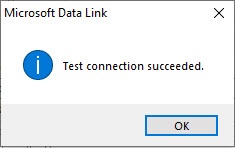
Click the OK button to close the window.
If the name of the SQL server and/or authentication parameters that are used in order to connect to it were set wrong, then the corresponding message is displayed.
Click the OK button to close the window
. Then correct the data and check the connection to the SQL server once again.
If the check of the connection to the SQL server is successful, select from the Select the database on the server drop-down list the name of the connected database.
Click the OK button in the Data connection properties dialog boxthe Data Link Properties window. As a result of this operation the dialog box will shut down.
Setting , the window closes.
The setup of the connection string to the main main Axxon PSIM database is completed.
In the same way, set the the connection string to the License Plate Recognizer database (the default database name is lprex).
In the same way, set the connection string to the DetectorPack PSIM database (the default database name is detectorpack).
| Info | ||
|---|---|---|
| ||
If you install POS PSIM, Auto PSIM, and DetectorPack PSIM after the WEB Report System PSIM, it is necessary to connect the WEB Report System PSIM database to the corresponding modules. To do this, start the repairing mode of the reporting subsystem report system and specify the appropriate corresponding connection strings (see Repairing Repair). You can also set the connection strings to all databases through the <Axxon PSIM installation directory>\Modules\Wt2\Web.config file. Examples of connection strings are given below:
|


The installation of WEB Report System PSIM is completed.

